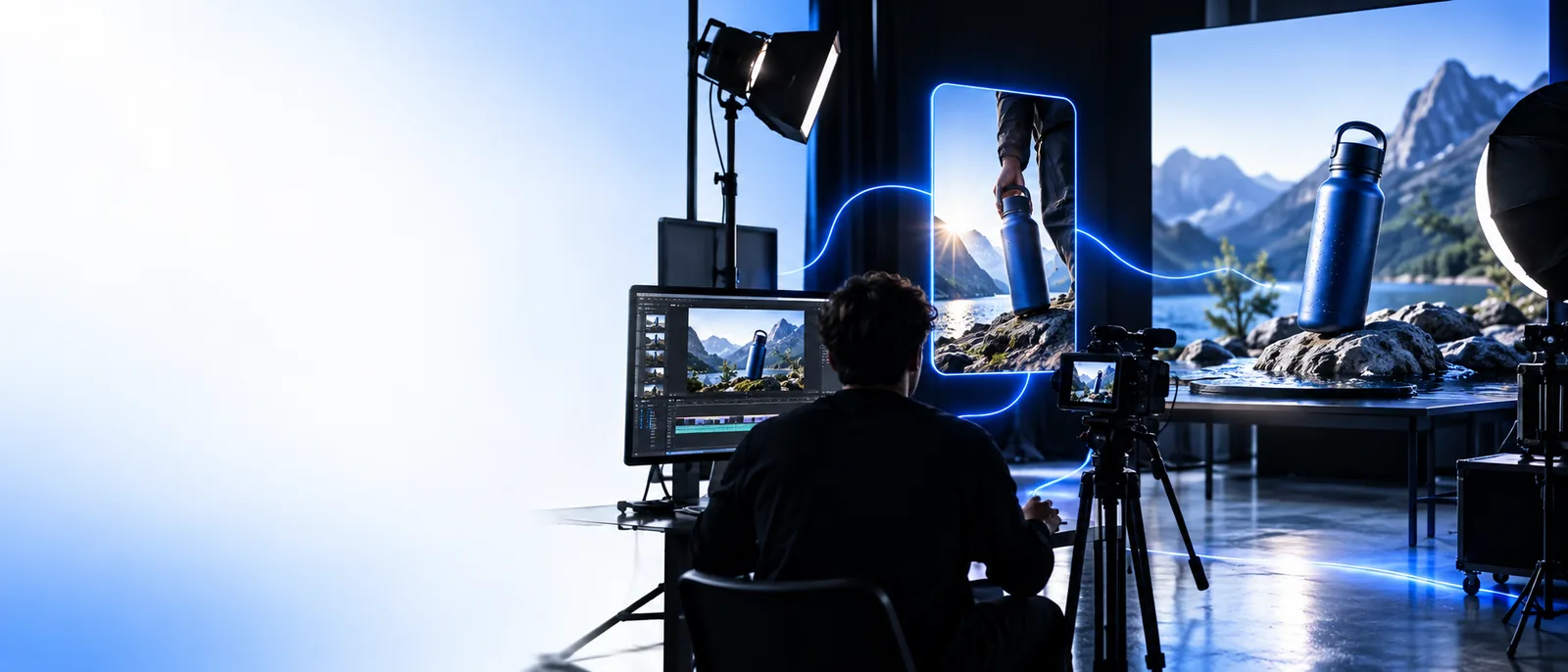
Workflow comparison

insmind vs video editor: Which fits your project?

The insmind vs video editor decision is less about which tool is better than what you need to deliver. Visual generation can help you explore a look; a timeline editor gives you direct control over footage, sound and the final sequence.

Visual creation imagery for comparing creative workflows

total-cost table

Count the whole job, not just the first result. The useful comparison includes source material, revisions, assembly and delivery.

where quality differs

Quality depends on the part of the project viewers will notice. A strong image does not, by itself, make a coherent edit.

Product marketer

You need to test several directions for a campaign image before anyone commits to a shot list. Judge the options on composition, product accuracy and whether the look can be repeated across the campaign.

Explore a visual direction first, then use an editor if the approved concept needs timed cuts, voice-over or captions. For a closer look at still-image work, compare insmind vs ai photo editor.

insmind vs ai photo editor
Social video producer

You already have clips from an event and need a recap with specific moments in a fixed order. Continuity, pacing and sound matter more than generating a new visual concept.

Start in a timeline editor so you can select exact frames, trim pauses and align audio. If you are weighing generation against working with existing clips, see insmind vs ai video.

insmind vs ai video

Small business owner

You want to preview a promotional look but have not filmed anything. An exploratory visual may help you decide what to shoot, although it cannot guarantee the same result in later footage.

Treat the visual as a reference, not as a finished commercial. The insmind vs ai photo editor comparison helps clarify whether the immediate deliverable is an image or a more involved production.

insmind vs ai photo editor

Agency reviewer

A client needs to approve a direction today, while the final deliverable will require multiple scenes and detailed feedback. The preview and the final cut serve different purposes.

Use visual exploration for a concept discussion, but retain a video editor for frame-specific notes, sound decisions and the approved export. Compare insmind vs ai video if generated motion is also under consideration.

insmind vs ai video

where time differs

The faster first draft is not always the faster finished project. Compare time spent reaching approval, not time spent reaching the first preview.

  1. 1

    Define the deliverable

    Write down whether you need a still concept, a short moving example or a finished video with approved sound and captions. Also list any footage, brand assets and exact wording that must be preserved. This prevents an attractive preview from being mistaken for an export-ready piece.

  2. 2

    Test the hardest revision

    Pick a likely feedback request: replace a product detail, change the order of two shots, shorten a pause or move a subtitle. Try that request in the proposed workflow before committing. An editor usually makes sequence-level changes directly; visual exploration may instead require another attempt and a fresh review.

  3. 3

    Count the handoffs

    Note who must review the concept, assemble the video and sign off on the export. Include the time needed to move approved visuals into an editing workflow if both approaches are necessary. A combined process can be worthwhile, but transferring work between tools is still work.

when switching is worth it

Switch the part of the workflow that is slowing you down. Do not replace a precise editing process merely because another route makes an appealing preview.

Visual exploration cannot promise an exact cut

A concept image or generated visual does not establish frame-accurate timing, transitions or the placement of a spoken line. Those details may determine whether a video is usable.

Workaround

Keep the timeline editor for shot order, trimming, audio and final approval. Use exploratory visuals only where they improve planning or supply a suitable asset.

A preview cannot verify every brand detail

Small lettering, packaging details and other required elements deserve close inspection. A result that looks convincing at a glance may still need changes before publication.

Workaround

Compare each proposed asset with the approved source material and check important text at its intended display size.

Neither route removes rights checks

Changing how a visual is made does not settle questions about permission to use supplied images, footage, music or a person's likeness. Client approval is a separate step too.

Workaround

Document source permissions and review the intended use before distributing the final work.

Switching can add assembly work

If the final piece still needs captions, music and several coordinated scenes, exploring visuals is an additional stage rather than a replacement for editing.

Workaround

Test one representative scene first. Continue only if the approved result saves more rework than the extra handoff creates.

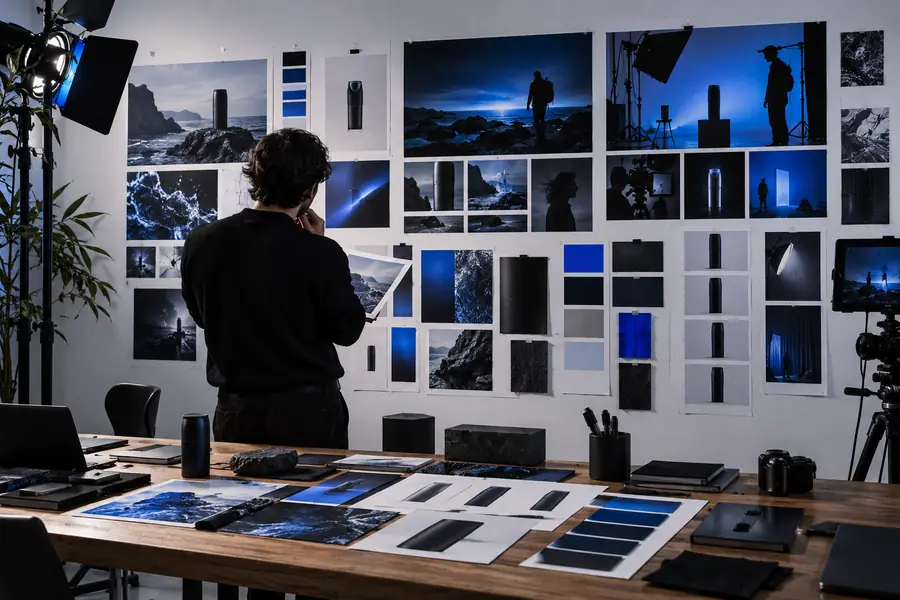
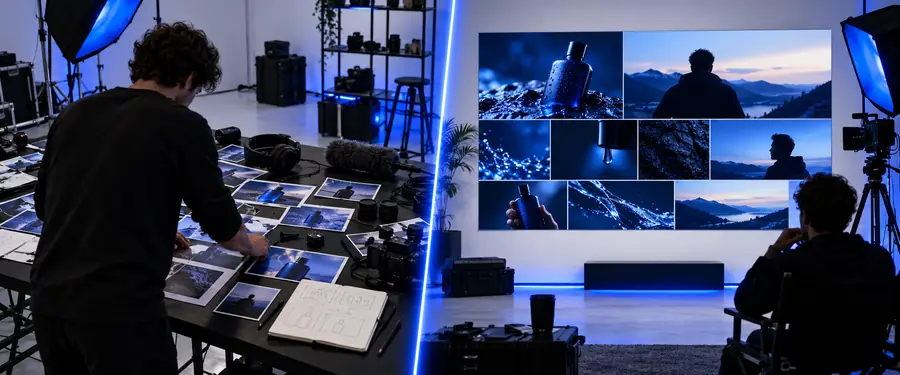
Compare a visual direction with a finished cut

Illustrative creative example used to discuss a proposed visual direction Concept reference
Second illustrative creative example used to discuss a reviewed direction Reviewed direction
These are illustrative examples, not a measured before-and-after edit or a claim that one workflow produced the other. Compare a real project using its approved brief, source assets and final delivery requirements.

Make the next test a small one

Explore the look before changing the workflow

If your main uncertainty is the visual direction, test an idea and review it against your brief. The link opens a separate visual-creation service; check its current capabilities and terms there. Keep your video editor in the plan whenever the finished piece needs precise sequencing, audio or export review.

Explore visual tools
  • Test a representative concept
  • Check details against the brief
  • Edit the final sequence where needed

comparison FAQ

That depends on what “finished” requires. A conventional video editor is the more direct choice when you must arrange specific clips, control timing, mix sound and review an exact sequence. Visual exploration can support the project without replacing those editing tasks.

Include the work around the tool: obtaining source material, making revisions, assembling the piece and approving the export. Check current service terms rather than assuming either route has a fixed cost. If you still need an editor after creating visuals, count both stages.

It depends on the change. A request to reorder existing shots is usually straightforward in a timeline editor, while a new visual direction may be easier to explore before production. Test a realistic revision instead of judging speed from the first preview.

Yes; they can serve different stages of the same project. You might explore a look or prepare an asset, then assemble and review the final sequence in an editor. Check that any asset meets the brief and that you have permission to use its source material.

Keep the editor central when you already have the required footage and the remaining work is precise trimming, audio, captions or frame-specific feedback. Adding visual exploration may create another approval and handoff without solving the bottleneck. A small test can reveal whether it contributes anything useful.

Start creating
Start creating