Workflow guide

insmind vs ai video: Start with the result you need

The useful distinction in insmind vs ai video is not which label sounds more capable. It is whether your next deliverable is a better still image or a moving sequence. This guide compares those jobs without assuming that every tool offers the same controls.

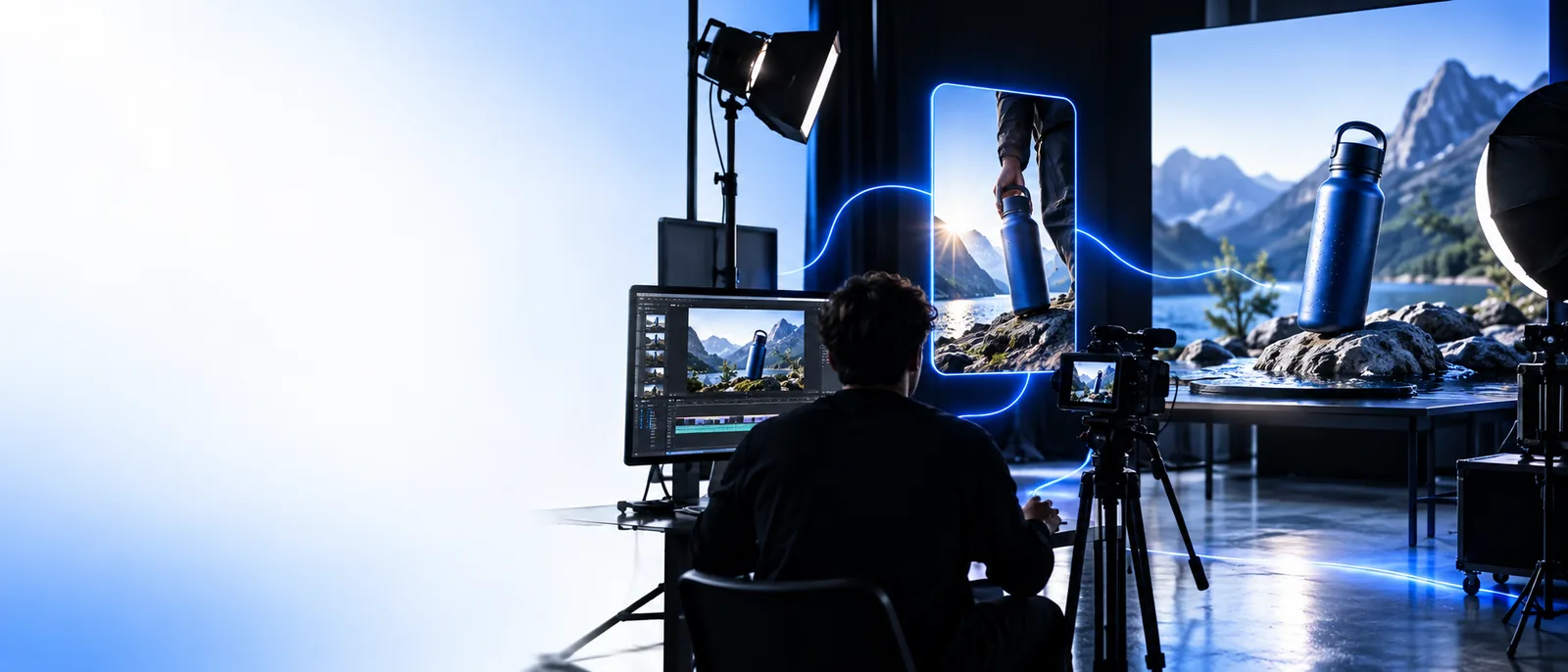
Visual creation examples shown in the Insmind site imagery

Verdict first (table)

For a single polished frame, begin with an image workflow. For a clip whose movement carries the message, evaluate an AI video workflow. The attribute table below spells out the tradeoffs.

Dimension by dimension

A short brief makes the choice easier. Walk through the asset you have, the change you need, and the format you must deliver.

  1. 1

    Identify your starting asset

    If you have a product photo that needs a cleaner background or a different composition, keep the first pass image-led. If you have only a concept for a scene that must move, write down the intended action and consider video generation. Do not treat a still photo as proof that a moving result will preserve every product detail.

  2. 2

    Define the success test

    For a still, inspect edges, readable text, color, and whether the subject remains faithful to the source. For video, inspect the same subject across frames, the plausibility of motion, and whether the opening and ending suit the placement. A striking preview is not enough if the required deliverable fails those checks.

  3. 3

    Plan the final assembly

    A generated clip may still need trimming, captions, audio, or placement in a larger edit. A refined image may be ready for a static placement or become source material for later motion. Decide who will review the result and what changes they can request before committing to either path.

Who each suits

Read each row as a task-based choice, not a promise about a particular tool. Availability, controls, and export options must be checked in the product you actually use.

Image-led Insmind workflow
General AI video workflow

Primary deliverable

Image-led Insmind workflow

A still visual, such as a product image, portrait, or campaign frame. Its quality can be judged at the intended display size.

General AI video workflow

A moving sequence intended to show action, atmosphere, or a change over time.

Best starting point

Image-led Insmind workflow

An existing image with identifiable details you want to retain or refine.

General AI video workflow

A scene brief or suitable source image, plus a clear description of the motion you want.

Main review question

Image-led Insmind workflow

Does the final frame preserve the subject, edges, and important visual details?

General AI video workflow

Does the subject stay recognizable while the scene moves from beginning to end?

Product-detail risk

Image-led Insmind workflow

Changes to the background or composition still need inspection around packaging and fine edges.

General AI video workflow

Details need inspection across multiple frames, not just in a selected thumbnail.

Campaign role

Image-led Insmind workflow

Useful when the placement calls for a cover, listing image, or other static creative.

General AI video workflow

Useful when the placement calls for a short demonstration, transition, or motion-led story.

Subsequent work

Image-led Insmind workflow

May need cropping or adaptation for each static placement.

General AI video workflow

May need a separate editing pass for timing, captions, sound, or continuity.

How to decide

Image-led Insmind workflow

Pick this path when one carefully reviewed frame communicates the message.

General AI video workflow

Pick this path when seeing something happen communicates more than a frame can.

Migration path

You can move from a still-image brief to a video brief without discarding the work you have already approved. Keep the reference and change the success criteria.

A still cannot prove motion quality

An approved image establishes the subject and visual direction, but it does not guarantee natural movement, stable details, or a usable ending in a generated clip.

Workaround

Treat the still as a reference. Describe one specific action, then review the entire clip frame by frame before using it.

A video preview cannot replace a clean still

A frame taken from motion may have blur, an awkward pose, or altered details. It may not meet the standard of a product image or campaign cover.

Workaround

Prepare and approve the static asset separately if the campaign needs both still and moving placements.

Generation does not finish an edit

Neither path, on its own, establishes that captions, audio, shot order, or placement-specific timing are complete.

Workaround

List those finishing tasks in the brief and use an appropriate editing step after asset creation.

This comparison cannot verify tool controls

It cannot establish the current models, input limits, supported formats, access requirements, or rights terms of a product reached through the CTA.

Workaround

Check the destination's current documentation and terms before uploading sensitive assets or committing to a deliverable.

Take the next visual step

Bring a clear brief to your next project

Start with the asset you have and the result you need. If the brief requires a polished frame, review it as an image; if it requires an action, plan to review the whole sequence. The destination is a separate visual creation service, so check its current capabilities and terms for your project rather than assuming it matches either column exactly.

Explore visual creation
  • Name the final placement before choosing a workflow.
  • Keep an approved reference when testing motion.
  • Review details in the final asset, not only a preview.

Comparison FAQ

These answers address the practical choice behind the related search for this comparison; product-specific availability should always be verified at the destination.

The clearest distinction is the deliverable: a refined still image versus a moving sequence. An image-led workflow makes sense when one frame carries the message; an AI video workflow makes sense when action or change over time matters. This is a workflow comparison, not a claim that one named product lacks video features.

A reviewed image can give you a useful visual reference when the subject or composition needs to remain recognizable. It is not a requirement for every video-generation workflow. If you do use one, check the resulting motion and subject details throughout the clip.

Not automatically. A video may convey context or movement while still containing frames that are unsuitable as clean product images. If a listing or static placement needs an accurate still, prepare and review that asset on its own.

Possibly, especially if the final piece needs captions, audio, several shots, or precise timing. Generation and assembly are different tasks. Check the actual output before deciding whether it is ready for publication.

Write separate acceptance checks for the still and the clip, then keep a shared subject reference for visual continuity. Approve each deliverable in the format where it will appear. That avoids relying on a video frame to do the job of a polished still, or expecting an image to demonstrate motion.

Start creating
Start creating