Image workflow guide

Plan an image project with insmind ai

Start with the image you have and the change you want. A clear goal helps you choose between generating a new scene, editing an existing photo, or working on a specific detail.

Review the result before using it
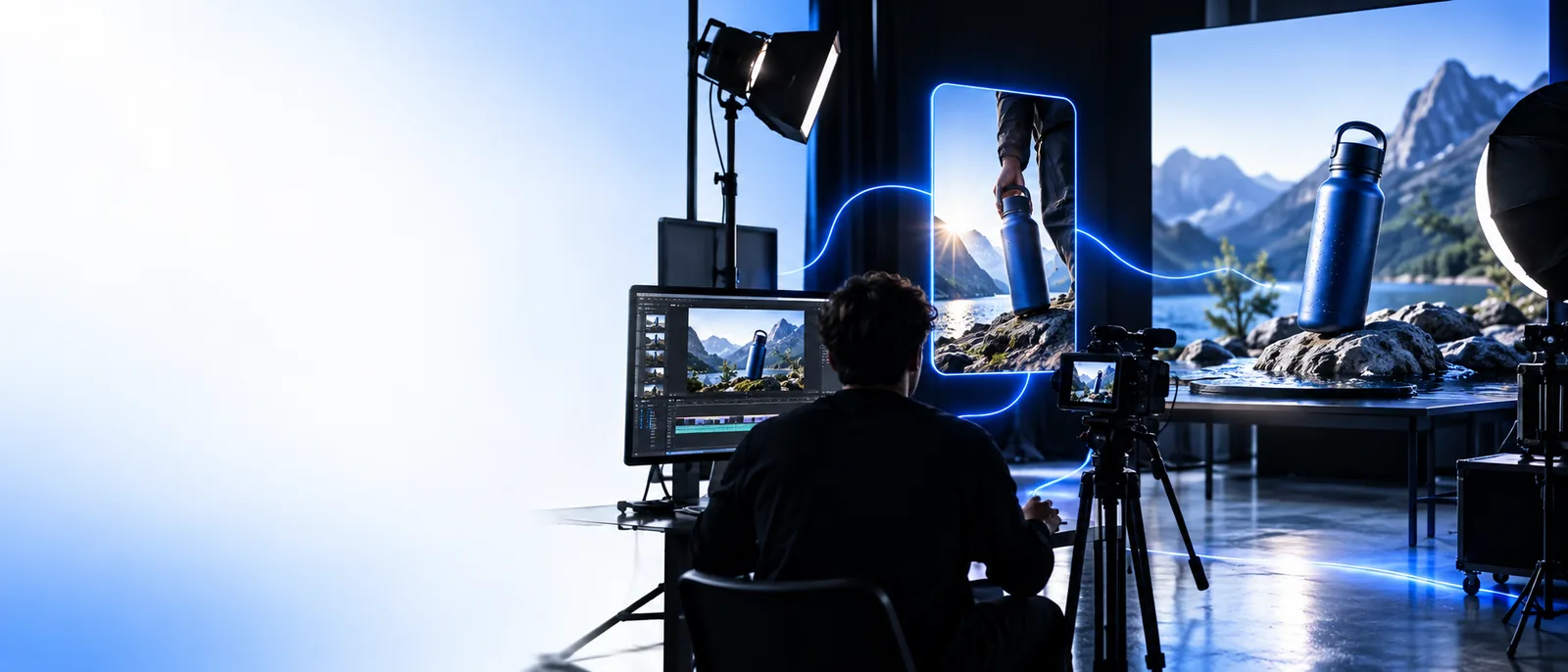
Insmind image-workflow visual

One-line value

Treat Insmind as a starting point, then pick a narrower workflow when your source image or intended output makes the choice clear.

Three mechanisms, three boundaries

Creating a scene, modifying a source and preparing a final asset call for different decisions. None removes the need to inspect the result.

A prompt cannot preserve every source detail

Generating a fresh scene may change a logo, product shape or other defining feature. A plausible image is not necessarily a faithful image.

Workaround

Keep a reference beside the result and check distinctive details against it before publication.

An edit cannot reveal unseen facts

Expanding a crop or replacing a background can introduce plausible-looking content where the source photo contains no information.

Workaround

Treat newly created areas as illustrative, not documentary, and avoid using them as evidence.

A good preview is not a finished deliverable

Text legibility, subject edges and layout can look different at the size where the image will actually appear.

Workaround

Check the intended crop and display size, then revise any awkward edges or unreadable details.

Step-by-step

Keep the first attempt narrow enough to judge. You can broaden the brief once you know which part needs work.

  1. 1

    Define the deliverable

    Write down where the image will appear, what must remain recognizable and whether you are starting from a photo. For a product image, specify the subject, background, lighting and space needed for text.

  2. 2

    Choose one change

    Ask for a new scene or make one targeted edit to an existing image rather than combining several unrelated changes. In an insmind ai workflow, this makes it easier to tell which instruction helped and which one caused a problem.

  3. 3

    Inspect and refine

    Compare the output with your brief. Check subject shape, small lettering, hands or other fine details, and any area generated beyond the original frame. Revise the instruction or switch to a more specific task if the same flaw persists.

Limits and edges

The useful distinction is whether you need a new interpretation or a controlled change to an existing asset.

Generate a new image
Edit a source image

Starting point

Generate a new image

A written description of the intended scene

Edit a source image

An existing photo or image to modify

Best-defined goal

Generate a new image

Explore a visual concept

Edit a source image

Change a particular part of a known image

What to specify

Generate a new image

Subject, setting, composition and lighting

Edit a source image

What to retain, what to change and where

Main uncertainty

Generate a new image

Whether distinctive details match the brief

Edit a source image

Whether untouched areas remain consistent

Review priority

Generate a new image

Overall relevance and visual coherence

Edit a source image

Edges, continuity and source fidelity

When to reconsider

Generate a new image

Exact source details must be preserved

Edit a source image

The source cannot support the desired scene

A more specific route is useful when the general image brief turns into a single, testable task.

Portrait editor

A portrait concept calls for changing a face while keeping the rest of the composition recognizable.

Check identity, consent and visible seams rather than judging the image only by its overall impression.

insmind face swap

Archive curator

An older image looks soft, but its original content matters more than a dramatic transformation.

Compare improved clarity with the source and watch for invented fine detail.

insmind enhancer

Video publisher

The source is footage, not a still image, and the concern is visible quality.

Review multiple frames for consistent improvement instead of trusting one attractive preview.

insmind video enhancer

Content creator

A still-image idea has become a brief for a moving scene.

Plan the action and inspect temporal consistency, which a still-image check cannot establish.

insmind ai video generator

Take a focused brief into your next image attempt

Describe one subject, one setting and the details that matter most. Then assess the result against that brief before you use it in a larger project. Available controls and output options depend on the destination tool.

Create an image
  • Keep reference details in view
  • Check the final crop
  • Revise one issue at a time

Frequently asked questions

Choose one image goal that you can describe and evaluate clearly, such as a product scene with a specified background. A narrow brief makes it easier to see whether the result serves your purpose.

Generate when you want to explore a new composition without depending on an exact source. Start from an existing image when its subject, identity or framing needs to remain recognizable.

The overall scene can look coherent while lettering, edges or distinctive objects are wrong. Inspect those details at the size and crop you intend to use, particularly when accuracy matters.

State the subject, setting and desired visual treatment, then identify what must not change if you have a source image. Revise the part of the instruction tied to a visible problem rather than rewriting everything at once.

Start creating
Start creating