Image framing

Use the insmind image expander to widen your composition

The insmind image expander is for a photo that feels too tightly framed: keep the subject in place while imagining new space beyond the original edges. Plan the final crop first, then inspect any generated surroundings before using the image.

Review the result before use
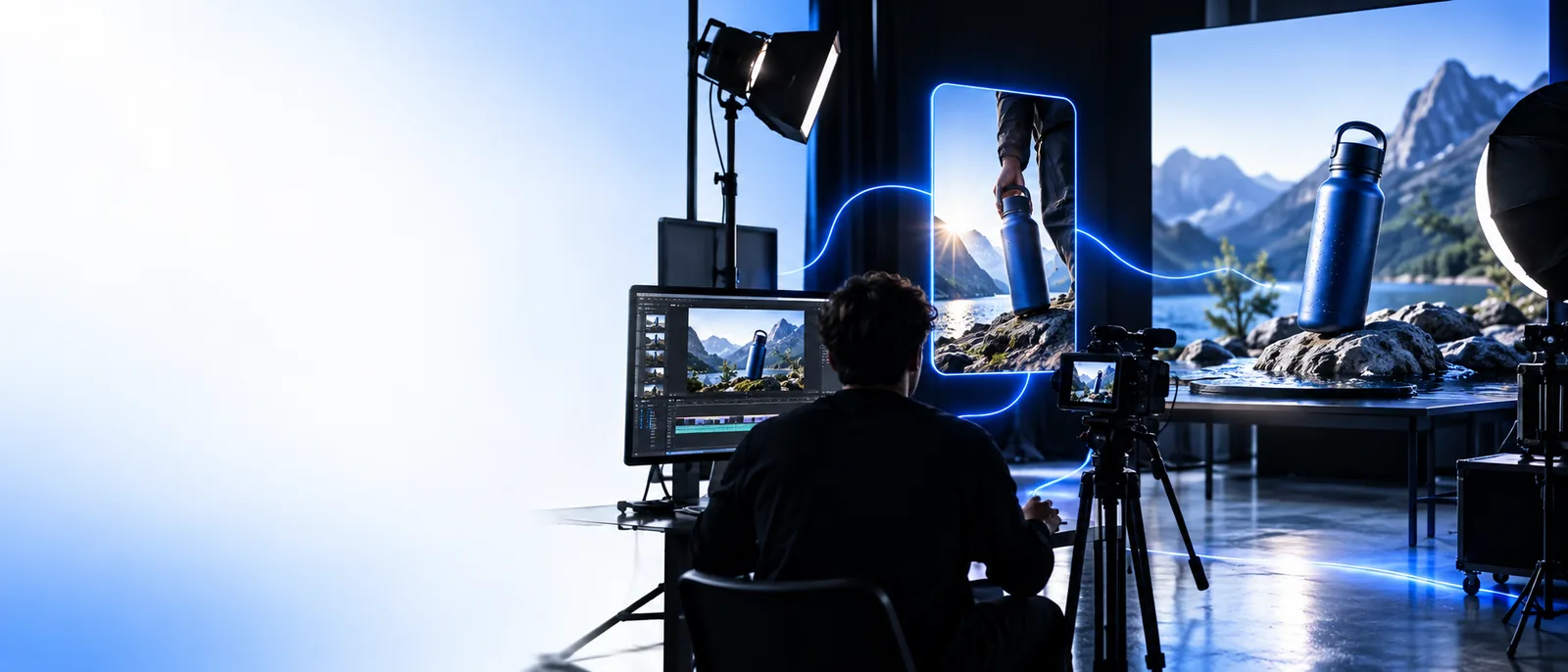
Insmind landing-page image illustrating a creative image workflow

Keep the subject, change the frame

Extra canvas can help a close crop fit a new layout, but expansion is different from removing a backdrop or sharpening the pixels you already have.

Three ways to make a larger canvas useful

The practical choices are where to add space, what belongs in it, and how to keep the original subject visually anchored.

Portrait maker

A headshot leaves too little space beside the face for a headline.

Extend one side while checking that hair, shoulders, and lighting still look continuous. If the goal is to change identity rather than framing, that is a separate edit.

insmind face swap

Product photographer

A square product image needs breathing room for a wide banner.

Add space around the product, then inspect shadows and surface texture where the original photo meets the new area. A different backdrop may be better handled separately.

insmind background remover

Social designer

A landscape photo must accommodate a taller placement without cutting off the subject.

Plan the vertical extension and reserve a clear area for text. If the source itself looks soft, improving visible detail is a different task.

insmind enhancer

Video creator

A still image needs a roomier composition before it becomes part of a moving sequence.

Settle the still frame first; expanding its edges does not create motion or repair footage. Video preparation calls for its own workflow.

insmind video enhancer

Step-by-step: plan the wider frame

Treat the image expander as a composition tool. These checks help you decide what to request and whether the result works.

  1. 1

    Choose a workable source

    Start with a photo whose main subject is visible and whose edge gives enough context to continue the scene. A wall, sky, or tabletop is easier to assess than an edge cutting through a hand or patterned garment.

  2. 2

    Describe the missing surroundings

    Decide which sides need more space and name useful scene details, such as a plain studio wall or more of the same landscape. Keep the requested setting consistent with the source rather than relying on a vague instruction to make it wider.

  3. 3

    Inspect and crop the result

    Check seams, repeated objects, perspective, and lighting near every extended edge. Then crop for the intended placement, leaving enough margin that a later layout change will not cut into the subject again.

Limits and edges

An image expander proposes content that was never captured. Treat those added pixels as generated artwork, not as evidence of what lay outside the camera frame.

It cannot recover unseen facts

A widened scene may look plausible without representing the real location, clothing, object, or person beyond the original crop.

Workaround

Use an uncropped original or another reference photo when factual accuracy matters.

Complex boundaries can break

Hands, hair, architecture, lettering, and repeating patterns can reveal mismatches at the transition between original and generated areas.

Workaround

Review the edge at full viewing size and consider a gentler crop if the join remains noticeable.

More canvas is not more source detail

Extending a frame does not restore sharpness to a blurry face or reveal detail missing inside the original image.

Workaround

Address visible-image quality separately before deciding how far to extend the composition.

A new frame is not a video

A wider still may be useful in a storyboard, but it does not supply camera movement, timing, or a finished clip.

Workaround

Plan motion as a separate step after approving the still composition.

Choose the right edit for the job

Compare expansion with a conventional crop before editing. A crop uses only existing pixels; the image expander adds proposed content outside them.

Expand the frame
Crop the original

Canvas boundary

Expand the frame

Moves outward beyond the captured image

Crop the original

Moves inward within the captured image

New surroundings

Expand the frame

May introduce generated scene content

Crop the original

Introduces none

Subject size in the layout

Expand the frame

Can leave the subject smaller relative to the new canvas

Crop the original

Usually makes the remaining subject larger relative to the frame

Source fidelity

Expand the frame

Requires inspection of every added region

Crop the original

Keeps all visible content within the original capture

Space for copy

Expand the frame

Can create room beside or above the subject

Crop the original

Can only use space already present

Best starting point

Expand the frame

A tight image that needs a wider composition

Crop the original

An image with unwanted content near its edges

Give the composition room to work

Plan the space your image needs

Start with the intended placement, describe what should appear beyond the current edges, and judge the result against the original. The best wider frame is one that serves the layout without drawing attention to where the source image ended.

Expand my image
  • Keep the original as a reference
  • Inspect newly added details
  • Crop for the final placement

Image expansion FAQ

An image expander is intended to add visual space beyond a photo’s existing boundaries. The original subject can remain central, but any newly depicted surroundings should be checked rather than assumed to match the real scene.

That is a sensible way to plan space for a headline or a subject placed off-center. Describe which edge needs room, then check the resulting composition and crop it to the layout you actually need.

No. Resizing changes the dimensions of existing pixels, while expansion calls for content outside the original frame. If all the necessary space is already in your photo, a crop or resize may be the simpler choice.

No. Generated surroundings can be visually convincing, but they do not document the uncaptured scene. For news, records, listings, or other accuracy-sensitive uses, rely on an authentic wider photograph instead.

Start creating
Start creating